
Bring Clients Back with One Message
Send WhatsApp broadcasts to the right clients, launch discount campaigns, and win back people who haven't returned — all from your portal, no marketing skills needed.
Start Now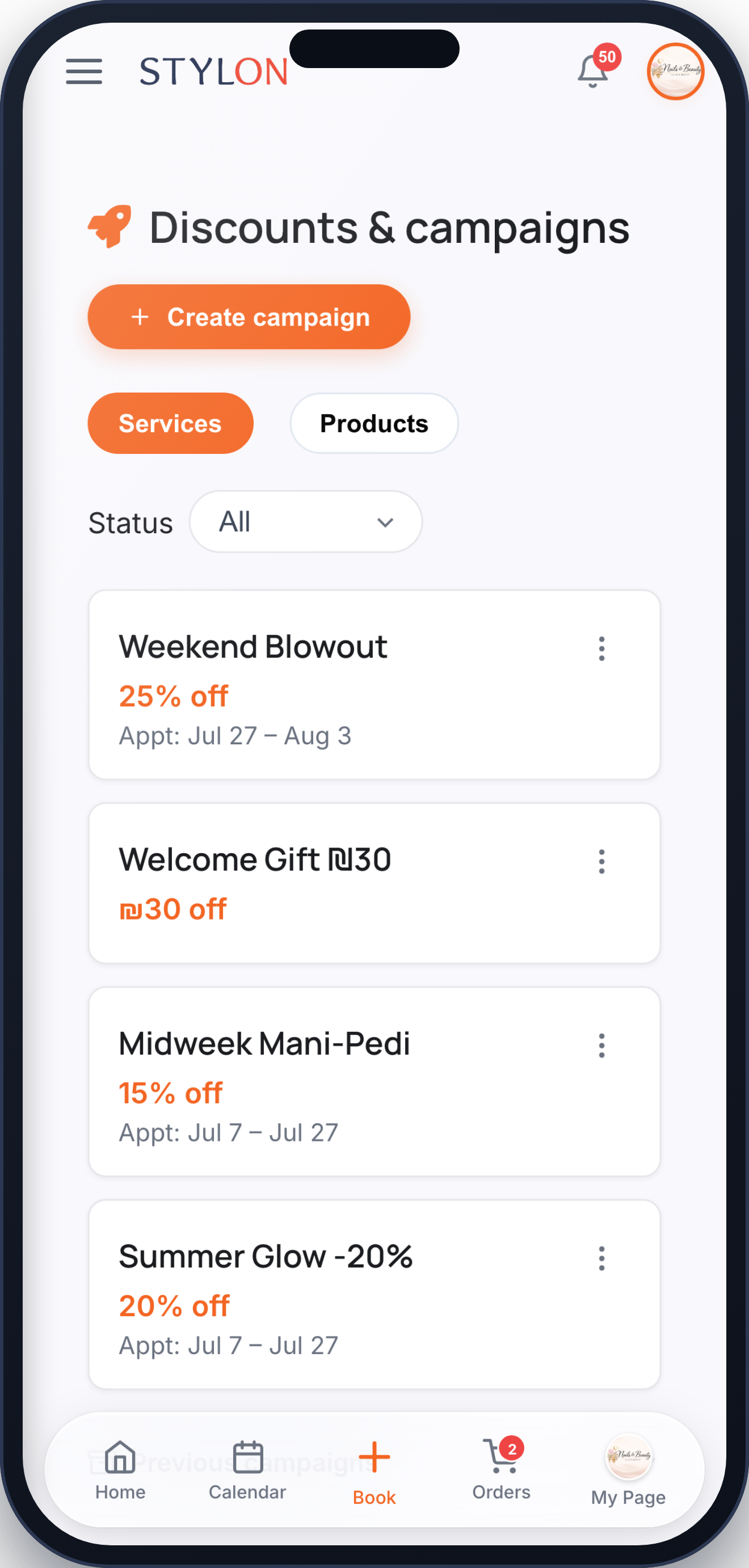
How It Works
Pick a goal — get more bookings, promote a service or package, announce a discount, or just keep in touch
Choose who gets it — everyone, or the right clients ranked by loyalty, overdue visits, and buying signals
Review the suggested message, personalize it, and send — your broadcast goes out on WhatsApp in minutes
Key Benefits
Frequently Asked Questions
Broadcasts are delivered over WhatsApp to the clients you choose. You pick your audience, review the message, and send — every recipient gets it on the WhatsApp number already saved in their profile.
Yes. Choose Everyone to reach your full list, or let Stylon rank the right clients for your goal — loyal, overdue, lapsing, or deal-seekers. You can also open the picker and hand-select exactly who receives it.
Not today. Marketing focuses on reaching the clients you already have — WhatsApp broadcasts, discount campaigns, and win-back messages. Paid ad-buying on external platforms is not part of the feature.
How to Use: Marketing & Campaigns
Messages page → tap "New broadcast" → the smart wizard opens on the goal step
Pick a goal: get more bookings, promote a service or package, announce a discount, or just keep in touch — then complete any inline sub-pick (which service, package, or discount)
For a discount goal → select an existing campaign or tap "Create a discount" to set one up in Campaigns, then choose whether it applies to a service, package, or everything
"Who gets it?" step → choose Everyone or The right customers → set the reach (Top 10 / Top 50 / All or a custom number). The live count shows how many clients will get the message
Review step → edit the suggested text, add "+ Name" or "+ Business" merge fields and a link button → tap Send. Track delivery and message balance back on the Messages page
Related features
Ready to get started?
Join businesses already running smarter with Stylon. No credit card required.
Start Now