
Turn Your Business Into an Online Shop
Build a product catalog with photos and variants, take orders online, and offer pickup or delivery. Every sale is tracked next to your services — one storefront, one dashboard.
Start Now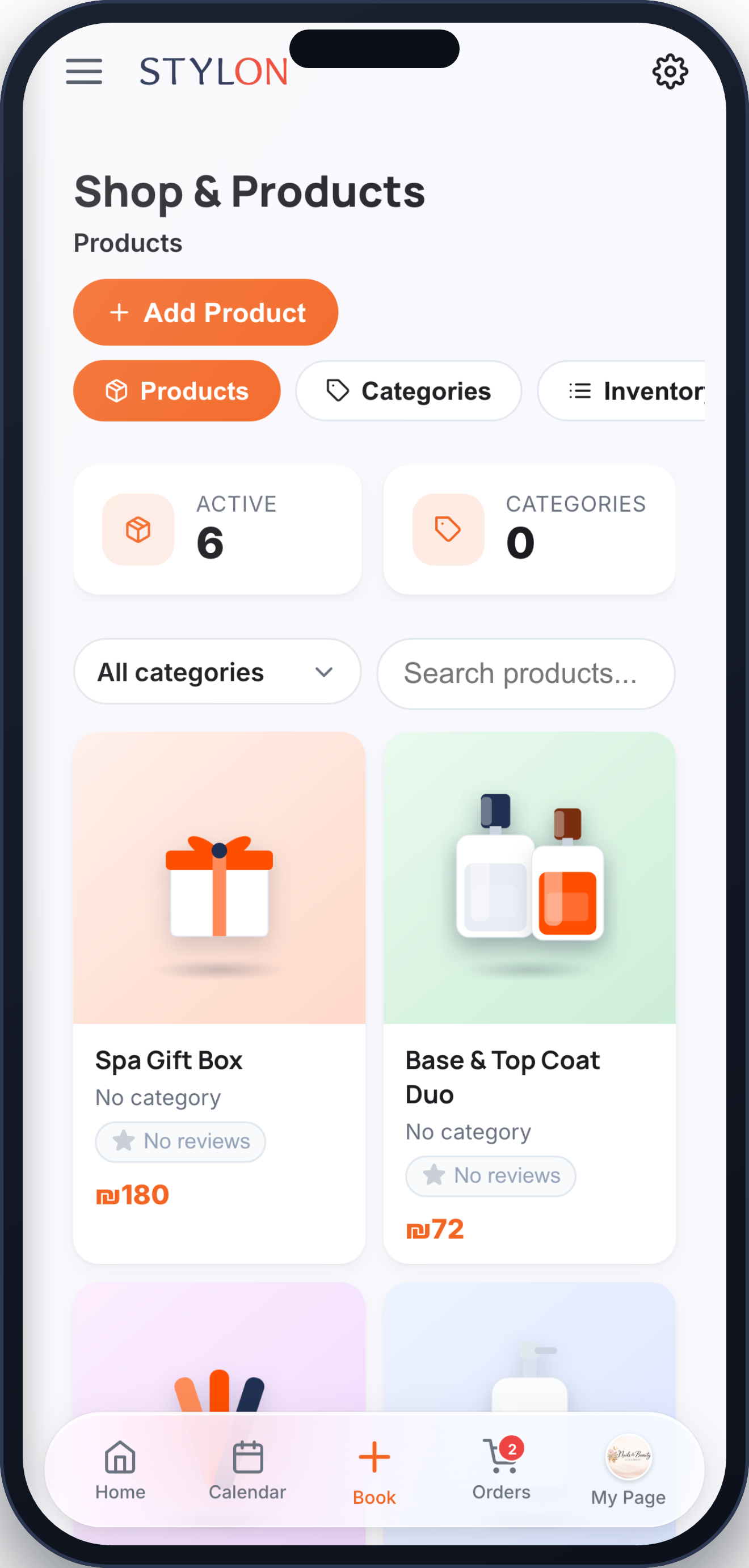
How It Works
Add your products with photos, prices, variants, and stock — organized into categories
Customers browse your shop and order online, choosing pickup or delivery at checkout
You review and approve each order, mark it ready, and track revenue from the dashboard
Key Benefits
Frequently Asked Questions
Go to Shop → Products and tap "Add product". Enter a title, price, photos, and stock, and add variants like size or color if you need them. Organize products into categories, then publish — they appear on your storefront within moments.
Yes. You decide which fulfillment options to offer in Shop settings. At checkout, customers pick pickup or delivery, and each order shows its status — Pending, Approved, Ready, and collected or delivered.
Every order comes in for your review. You approve it, mark it ready, and hand it over or send it out. Payment status is tracked too — whether the customer paid online, left a deposit, or pays in cash on collection.
How to Use: Product Store
Shop → Products → tap "Add product" → enter title, price, and photos → save and publish
Open a product → add variants like size or color → set the stock quantity for each so the shop never oversells
Shop → Categories → create categories (e.g. "Care", "Accessories") → assign products so customers can browse easily
Shop → Settings → Delivery → choose whether to offer pickup, delivery, or both, and set any delivery details you need
Orders → open a new order → Approve → mark it Ready when prepared → hand it over for pickup or send it for delivery
Related features
Built for
Ready to get started?
Join businesses already running smarter with Stylon. No credit card required.
Start Now